Who it is for
The personas mapped who grows, why, how much they know and what they would pay. Each one came with a goal for the experience, so the beginner’s path stays simple while professionals get the detail they need. Plans were set as basic (free), medium and advanced, and the navigation changes with the user type.
- Grower
- Millennials, parents and students, little or no hydroponic knowledge. Wants healthy food and to experiment. Basic plan. Goal: simple and fun.
- Expert Grower
- A hydroponic fan: environmentalist, tech-minded, organic, from school and community garden projects. Shares what they learn. Medium plan.
- Pro Grower
- A hydroponic farmer or small business that grows for a living. Manages several gardens and loads recipes. Advanced plan. Goal: efficient and accurate.
- Data User
- A researcher who follows the growing data. Goal: efficient and accurate.
- Eddy Guru
- An expert grower who edits content, writes recipes and answers questions for the community.
- Admin
- Manages the application.
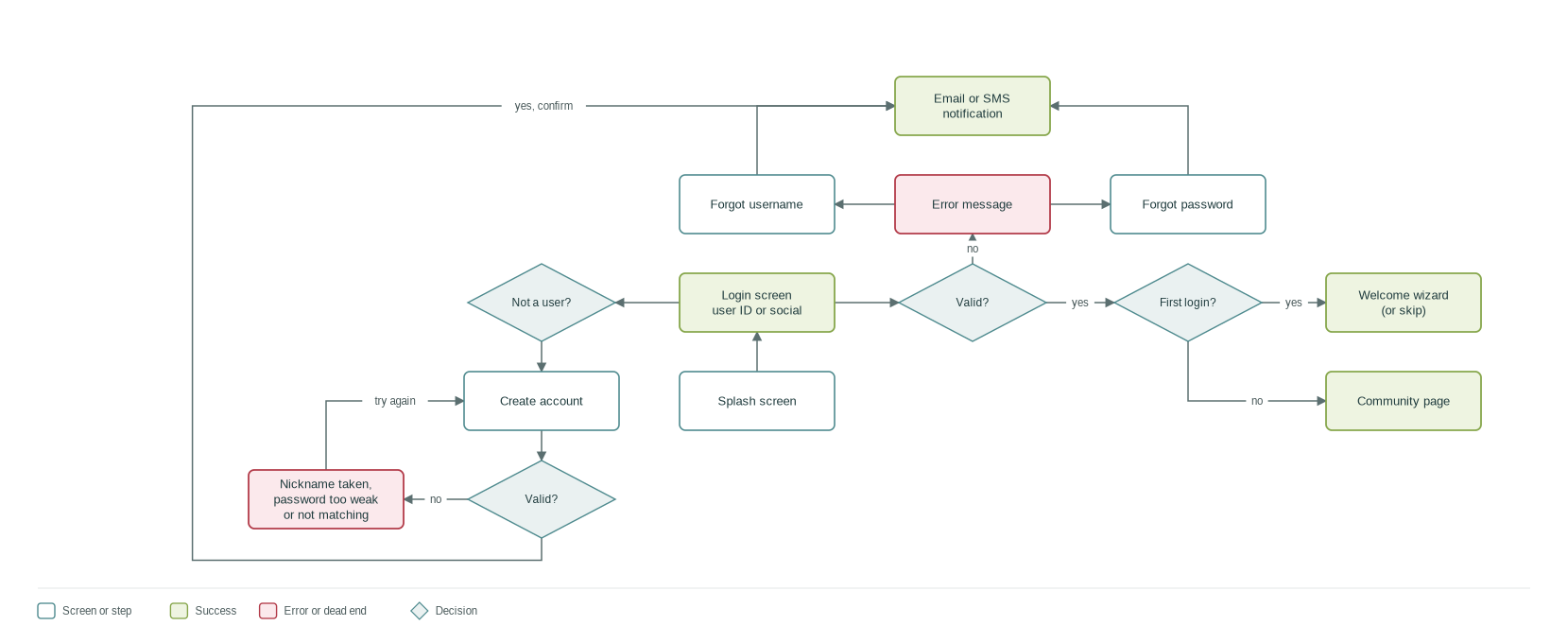
A profile needs only a nickname, email and password, or a Google or Facebook account. Name, phone and address are optional.
The system map
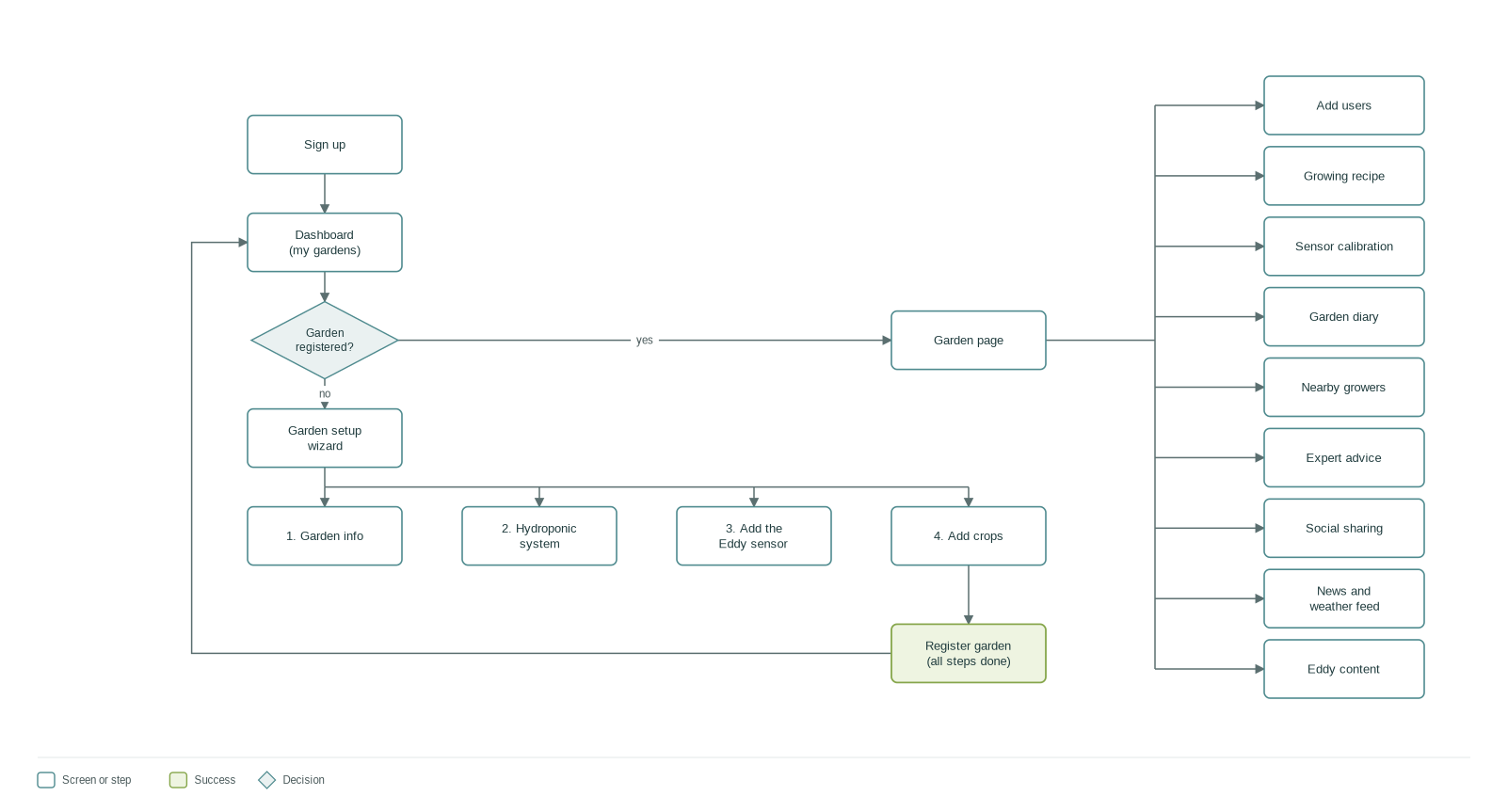
After sign-up, the app checks whether the user has a registered garden. If not, the setup wizard runs four steps: garden info, the hydroponic system, the Eddy sensor and the crops. Any step can be skipped and finished later. The garden is registered only when all four are done. From then on, the garden page leads to everything else: users, recipes, the diary, experts and other growers.
Setting up the hardware
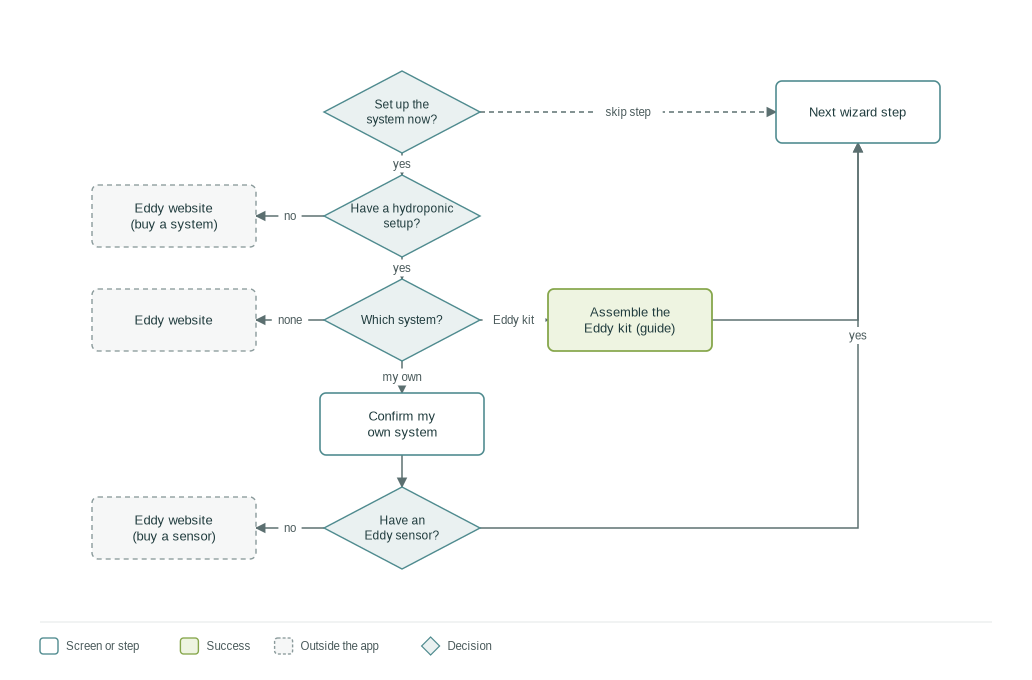
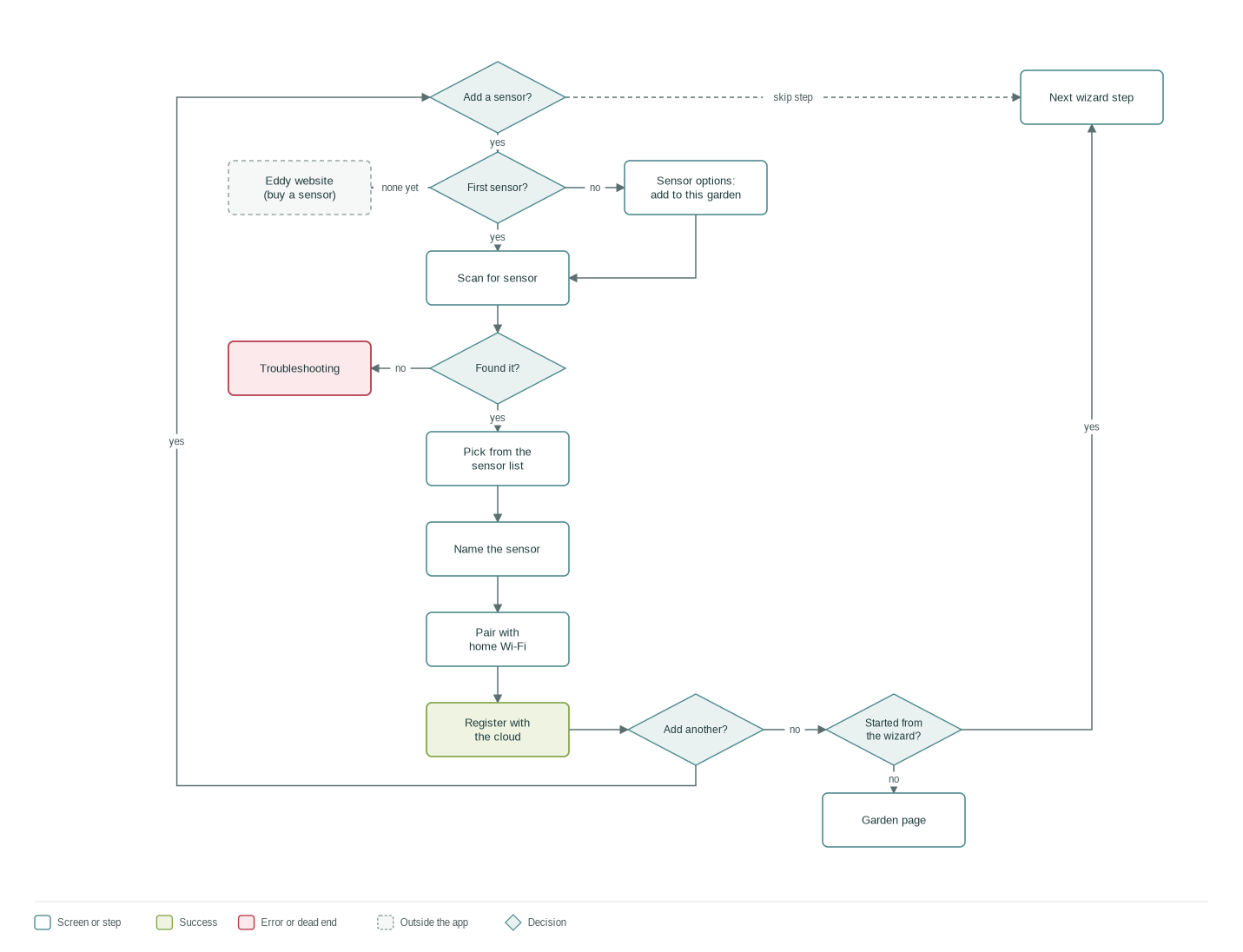
People may own an Eddy kit, their own hydroponic system or nothing yet. The assembly flow handles all three: it guides the kit assembly, confirms a system they already have, or sends them to the Eddy website. Adding a sensor scans for it, names it, pairs it with the home Wi-Fi and registers it with the cloud. Then it returns to where the user started, the wizard or the garden page.
When the sensor doesn’t connect
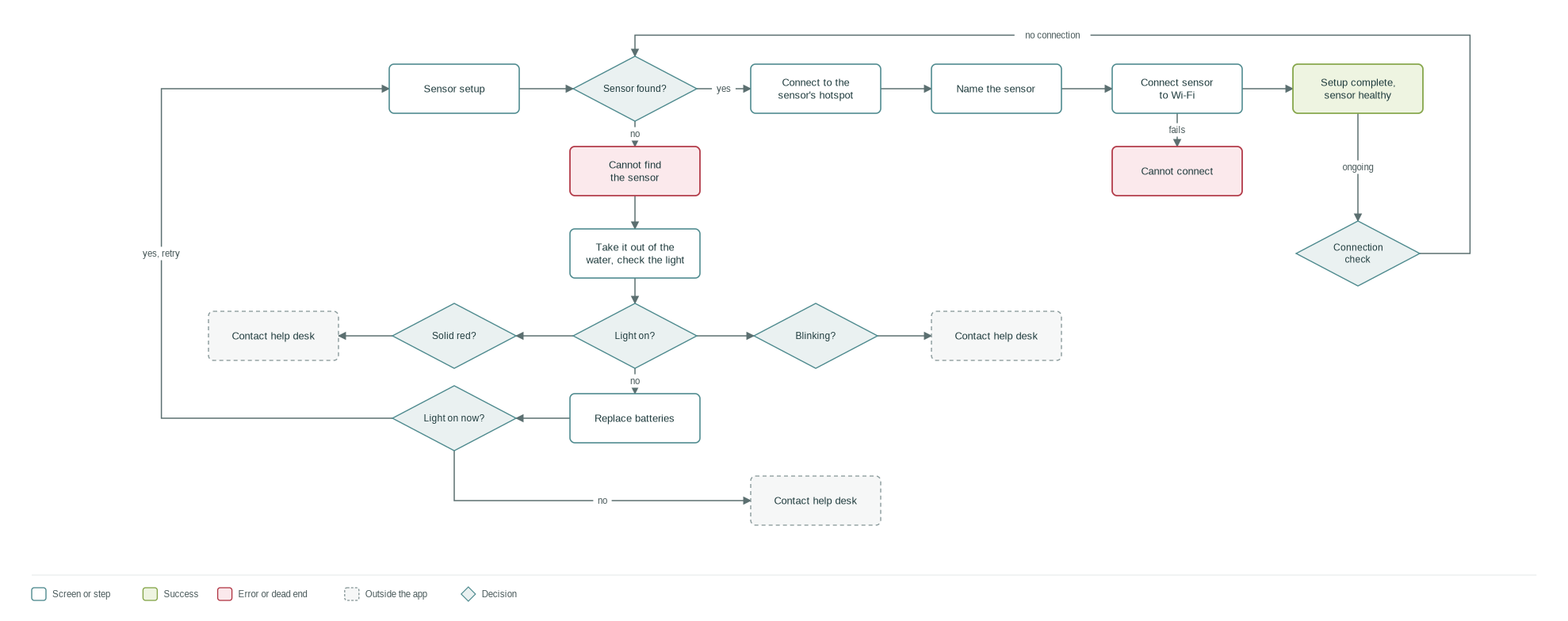
Hardware problems end up as support calls, so the troubleshooting flow tries to solve them in the app first. If the sensor can’t be found, the user takes it out of the water and reads the light: no light means new batteries and another try; solid red or blinking goes to the help desk. Once set up, the connection is checked regularly, and a lost connection starts the search again.
Choosing crops
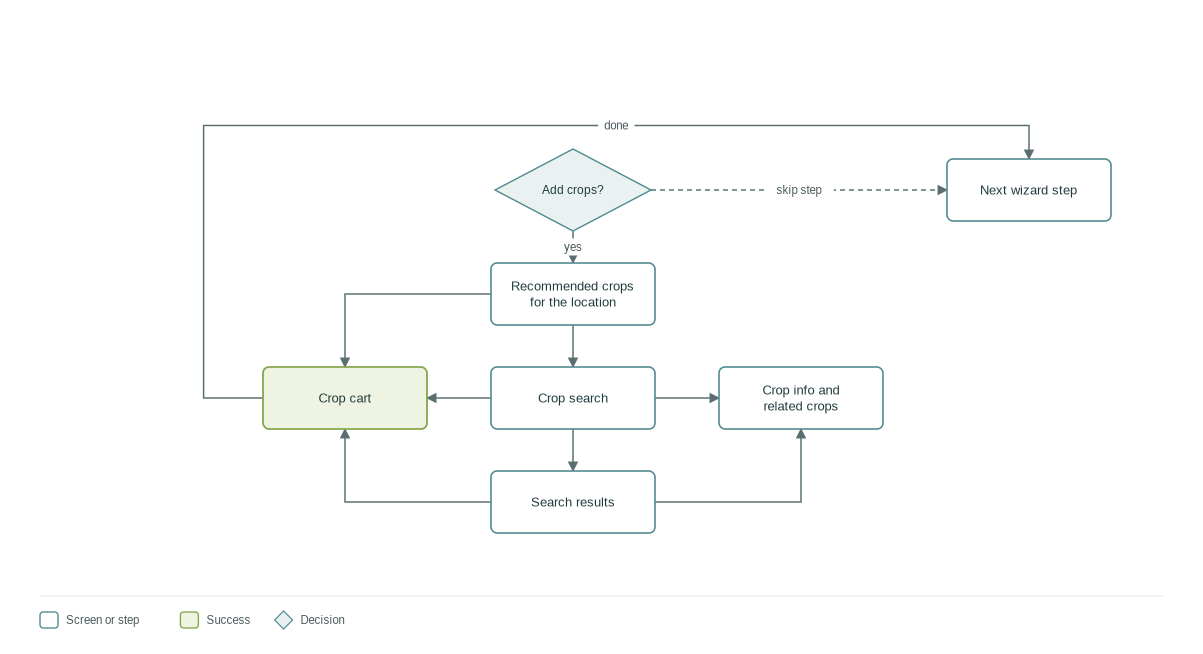
Crops are recommended for the garden’s location, or found by search. Each crop shows its info and related crops, and choices go to a crop cart before they are added. Behind each crop is a recipe: its type and family, indoor or outdoor, where it can grow and the total time to harvest. The recipe is split into growing steps, each with its own time, instructions, to-do tasks and diary entries.
Watching the garden
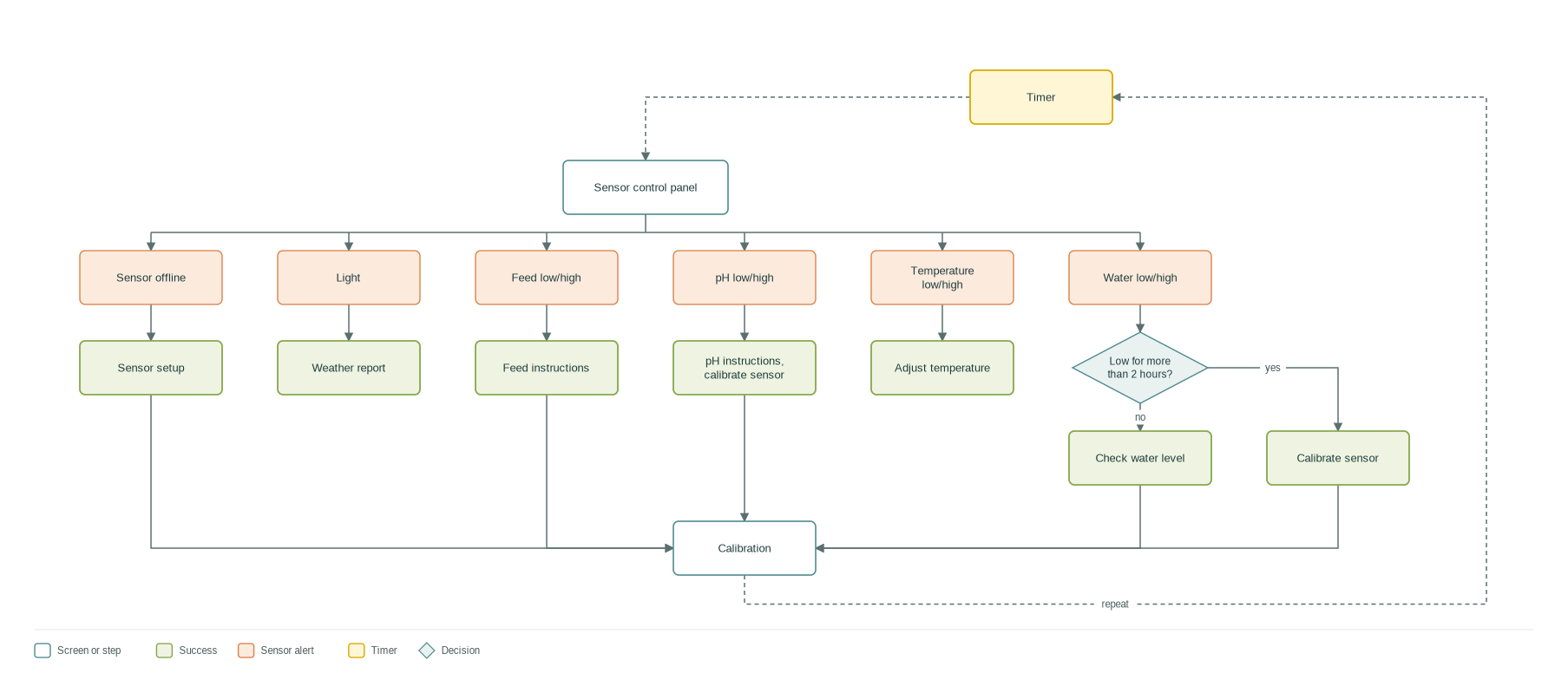
On a timer, the sensor control panel checks for six alerts: sensor offline, light, feed, pH, temperature and water. Each alert comes with its own fix, such as feed instructions, pH instructions or a weather report. When the water is low, the app first asks the user to check the water level; if it stays low for more than two hours, it asks for a sensor calibration. Every fix ends in calibration, and the timer starts again.
Growing together
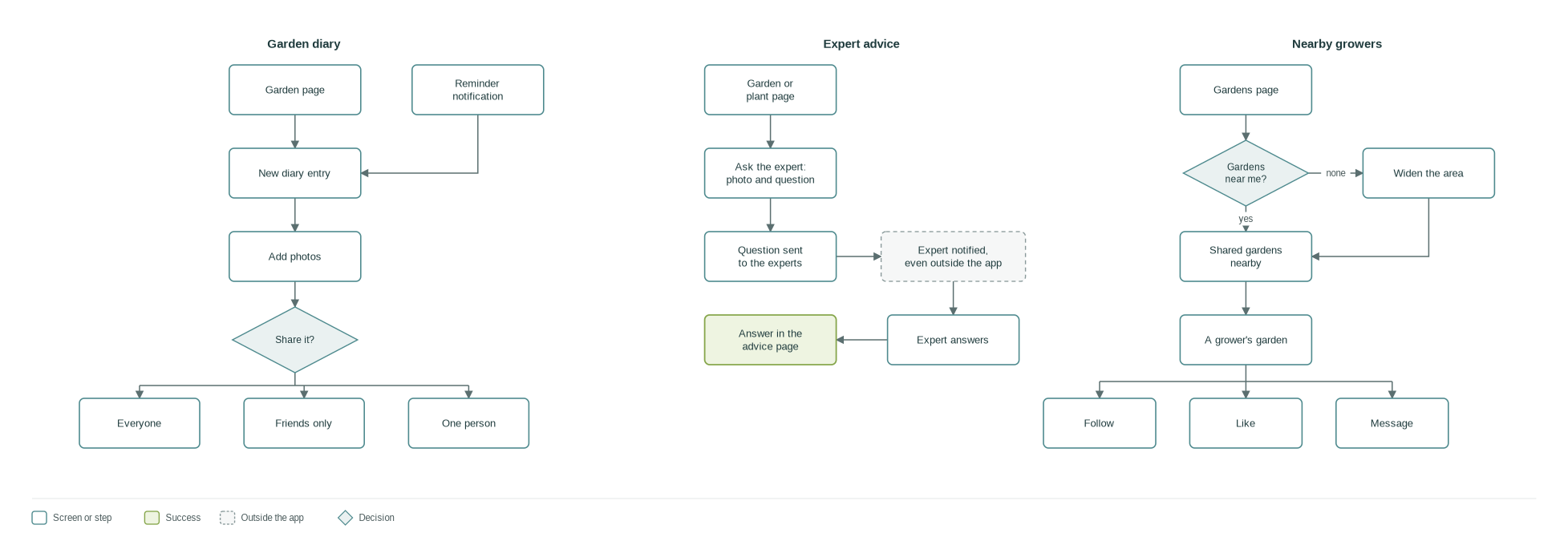
The diary takes notes and photos, prompted by reminders, and each entry can be shared with everyone, with friends or with one person. Expert questions reach the experts by notification even when the app is closed, and the answer comes back to the advice page. Nearby shows shared gardens around the user and widens the area when there are none.