How six brand sites shared one system, how SeikoUSA.com was organized, and how people found a watch, registered it and reached a store.
Role
UX designer and information architect
Company
Seiko Corporation of America
Users
Customers, retailers and Seiko staff
Scope
Internal and customer-facing digital experiences: 5 web properties and an interactive operational guide, including front-end HTML/CSS
One system behind six sites
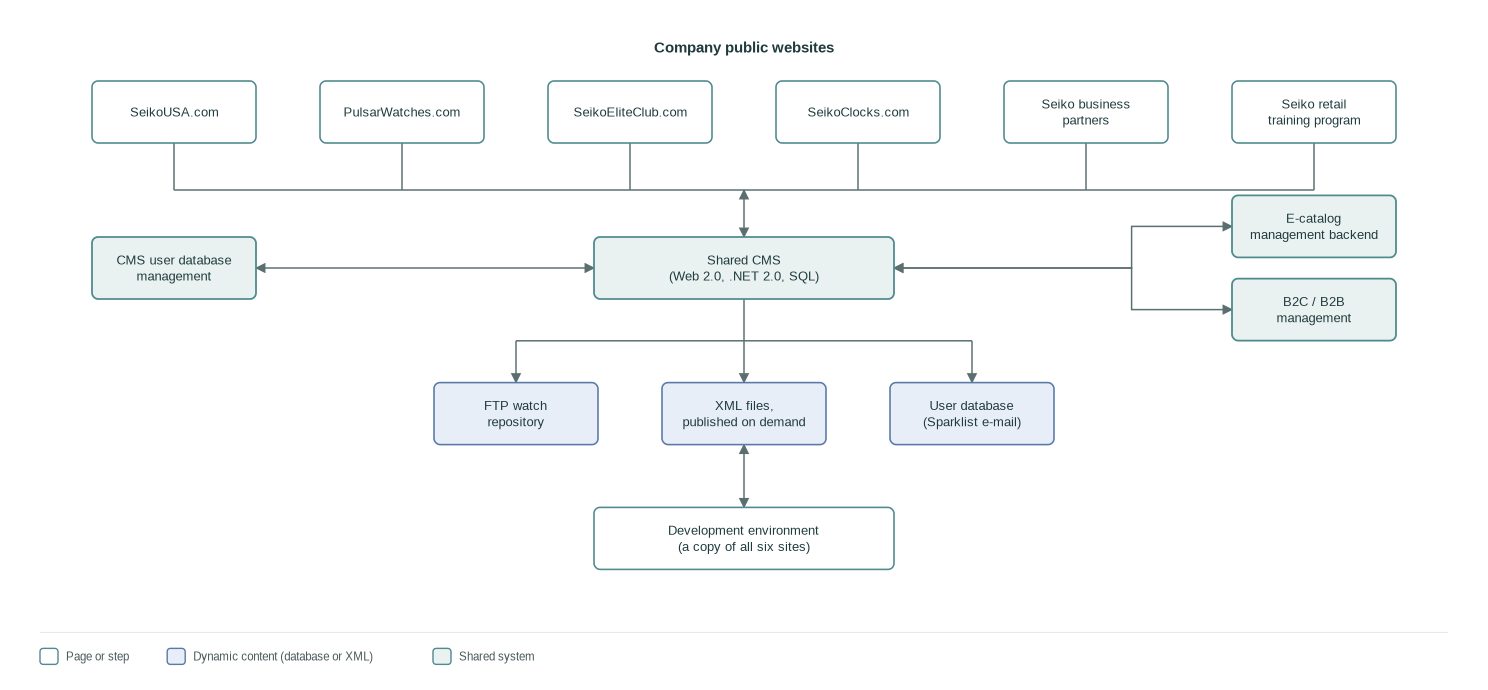
Six public sites (SeikoUSA.com, PulsarWatches.com, SeikoEliteClub.com, SeikoClocks.com, the business partners site and the retail training program) run on one CMS built on .NET 2.0 and SQL. Inside it sit an FTP watch repository, XML files published on demand, and a user database tied to Sparklist e-mail marketing. Around it are the e-catalog management backend, B2C and B2B management, and the CMS user database. A development environment holds a copy of every site.
One shared system behind the brand family.
The site map
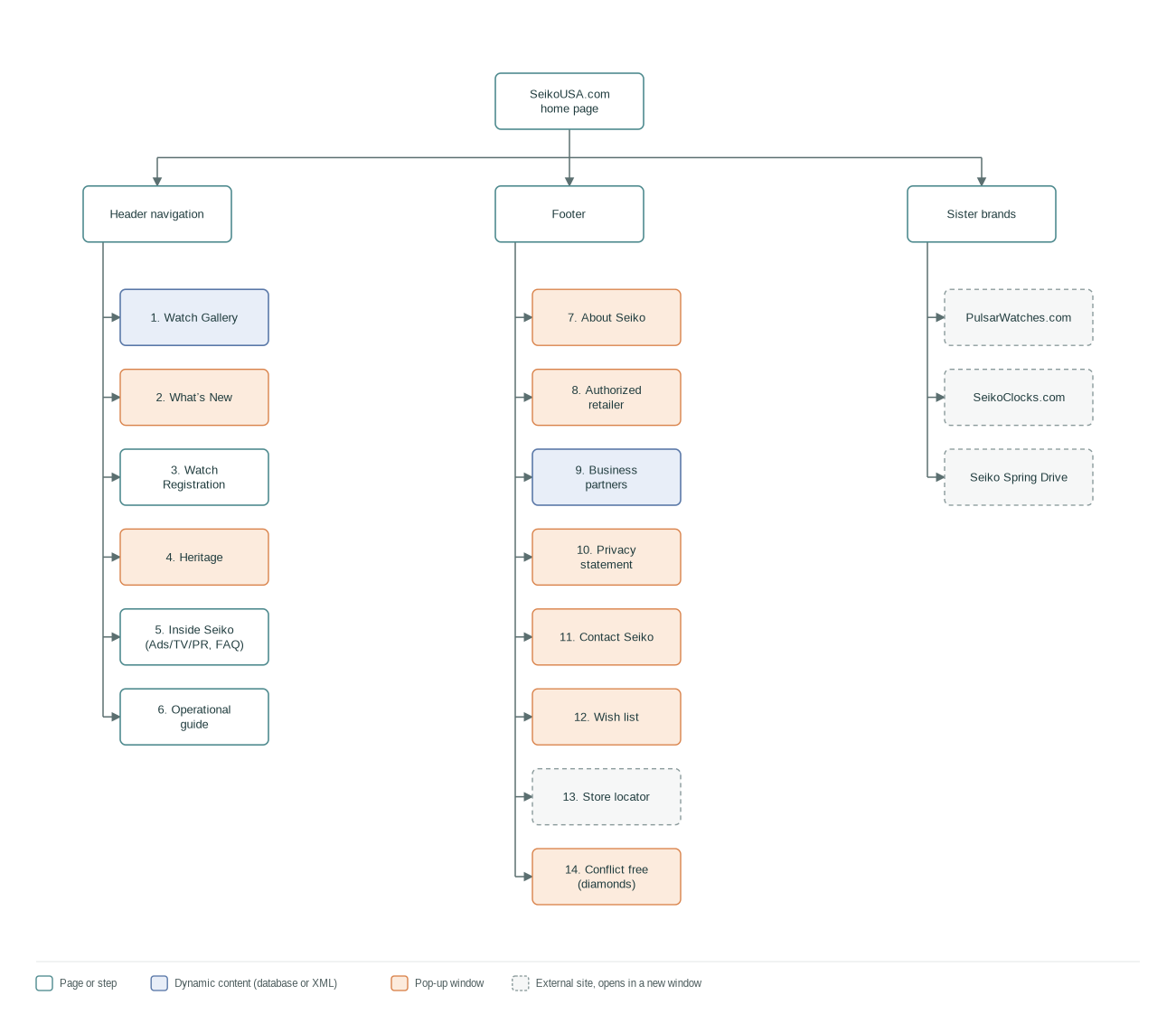
SeikoUSA.com has six header sections and eight footer links, plus links to Pulsar, Seiko Clocks and Spring Drive that open in a new window. Every page in the map is marked by how it is delivered: dynamic pages built from the database or XML, Flash pop-up windows, or external pages.
The SeikoUSA.com site map.
Finding a watch
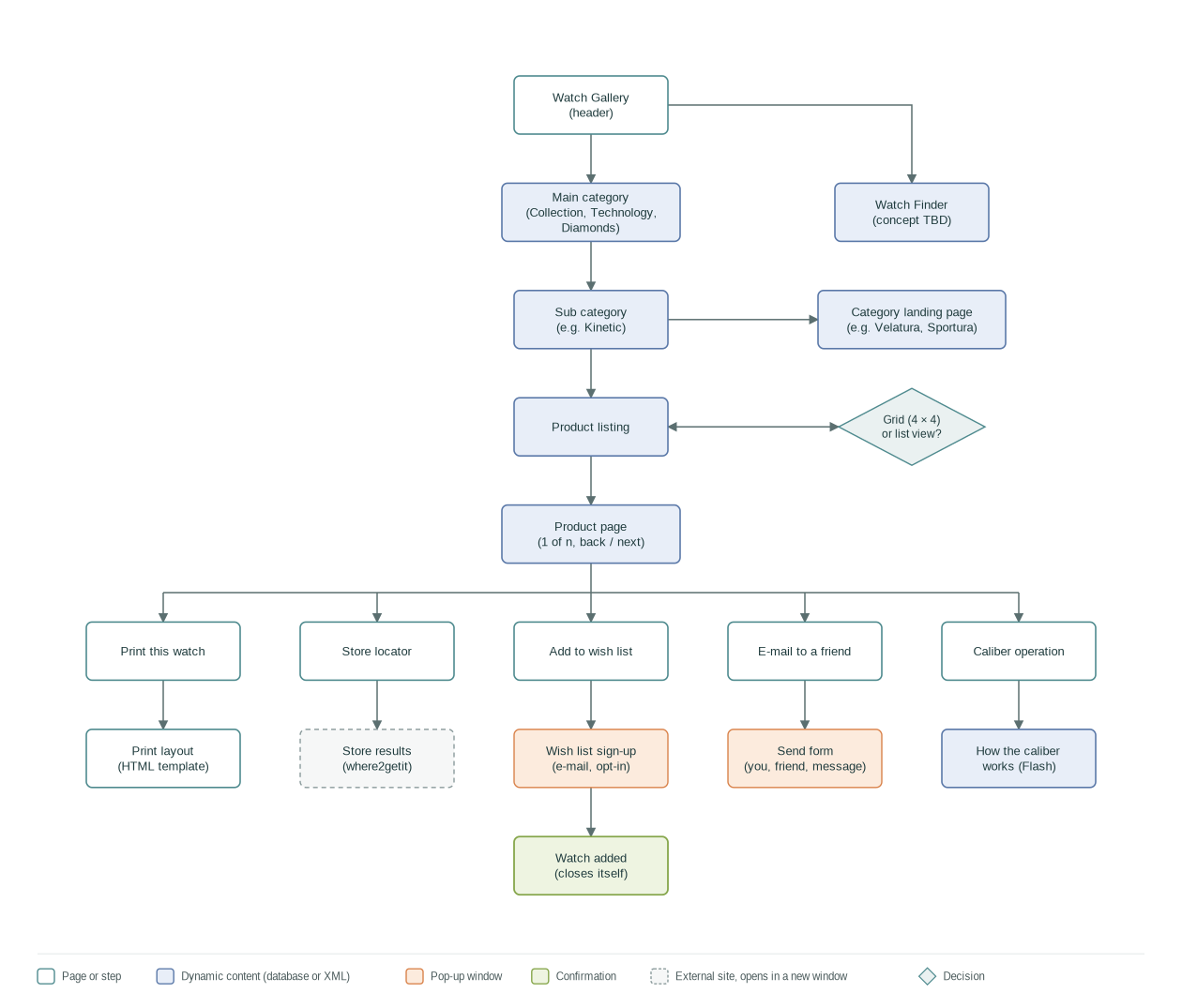
There was no online checkout, so the gallery had one job: get a shopper from a collection to one watch, and from there to a store.
From the Watch Gallery to the product page.
Use case: find a watch
Who
A shopper on SeikoUSA.com
Starts from
Watch Gallery in the header
Ends with
The product page of one watch
VisitorSeikoUSA.com
Visitor: Opens Watch Gallery.SeikoUSA.com: Opens the sub navigation: Collection, Technology, Diamonds and Watch Finder.
Visitor: Picks a main category, such as Collection.SeikoUSA.com: Shows one image and name per collection, such as Velatura.
Visitor: Picks a collection.SeikoUSA.com: Shows the collection: a Flash image with its text, or a video that streams as it opens. The left navigation lists the subcategories.
Visitor: Clicks View models or a subcategory, such as Kinetic.SeikoUSA.com: Shows the watches, each with its SKU, technology and extra information, with the total count and Next and Back.
Visitor: Picks a watch.SeikoUSA.com: Opens the product page with the Product Category tab open: collection, technology, MSRP and gender.
Visitor: Reads Features, Technical details or Caliber operation.SeikoUSA.com: Shows each tab’s content from the database or XML; Caliber operation is a Flash presentation of how the caliber works.
Other paths: the listing can also show 16 watches in a 4 × 4 grid or a list (optional). The plan left the Watch Finder’s build open: Flash or tag based.
Finding a store
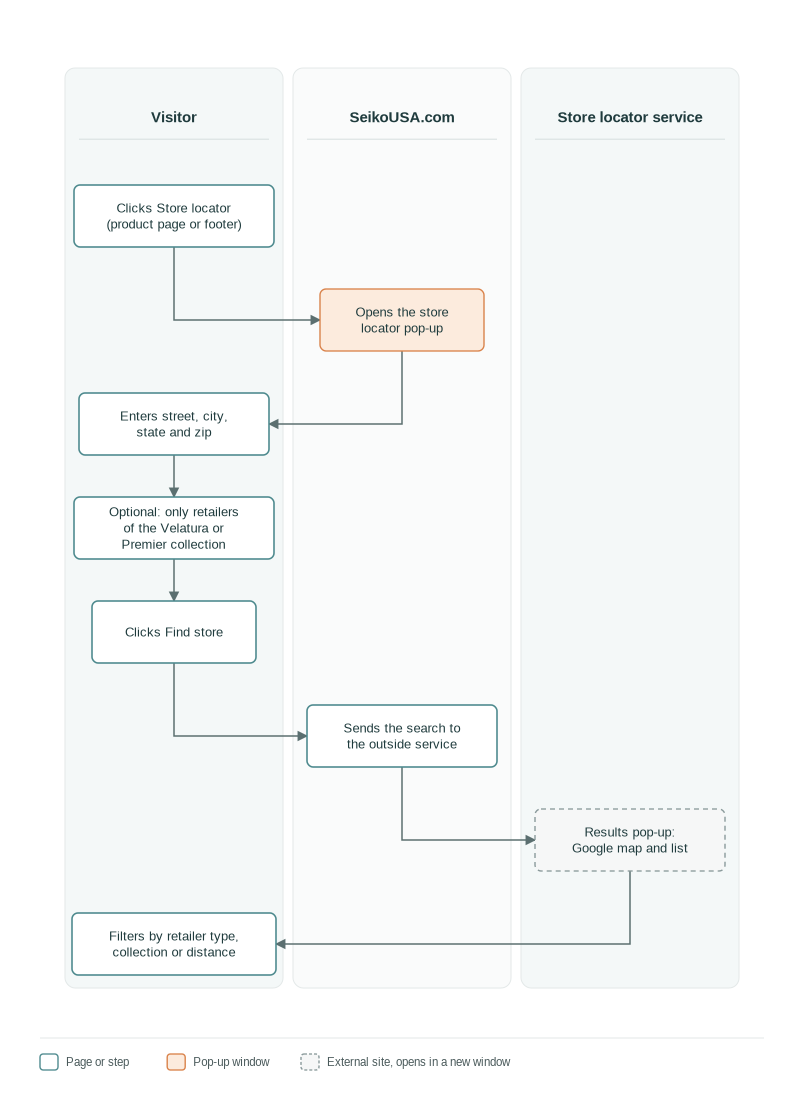
Every path ends at a retailer, so the store locator is reachable from each product page and from the footer. The search itself runs on an outside service.
Use case: find a store
Who
A shopper who has picked a watch
Starts from
Store locator on the product page or in the footer
Ends with
A list of nearby stores on a map
VisitorSeikoUSA.com
Visitor: Clicks Store locator.SeikoUSA.com: Opens the store locator pop-up, a Flash form.
Visitor: Enters street, city, state and zip.
Visitor: Can limit the search to retailers of the Velatura or Premier collection, then clicks Find store.SeikoUSA.com: Sends the search to the outside store locator service.
SeikoUSA.com: The service opens an HTML results pop-up with the Seiko logo, a Google map and the list of stores.
Visitor: Filters the results by retailer, Seiko specialist, Seiko full line, Velatura collection, Premier collection or distance.
Who does what: the visitor, SeikoUSA.com and the outside store locator service.
Saving and sharing a watch
Without a cart, the wish list, e-mail and print options let people keep a watch in mind until they reach a store.
Use case: save a watch to the wish list
Who
A shopper on a product page
Starts from
Add to wish list
Ends with
The watch saved to their wish list
VisitorSeikoUSA.com
Visitor: Clicks Add to wish list.SeikoUSA.com: Opens a pop-up asking for an e-mail address, with an optional mailing list opt-in.
Visitor: Enters an e-mail address and submits.SeikoUSA.com: Confirms that the watch was added, thanks them if they joined the mailing list, and closes the pop-up by itself.
Other paths: E-mail to a friend opens a pop-up with your name and e-mail, your friend’s name and e-mail, and a message. Print this watch opens a print page built from an HTML template: Seiko logo, watch image and watch details.
Registering a watch
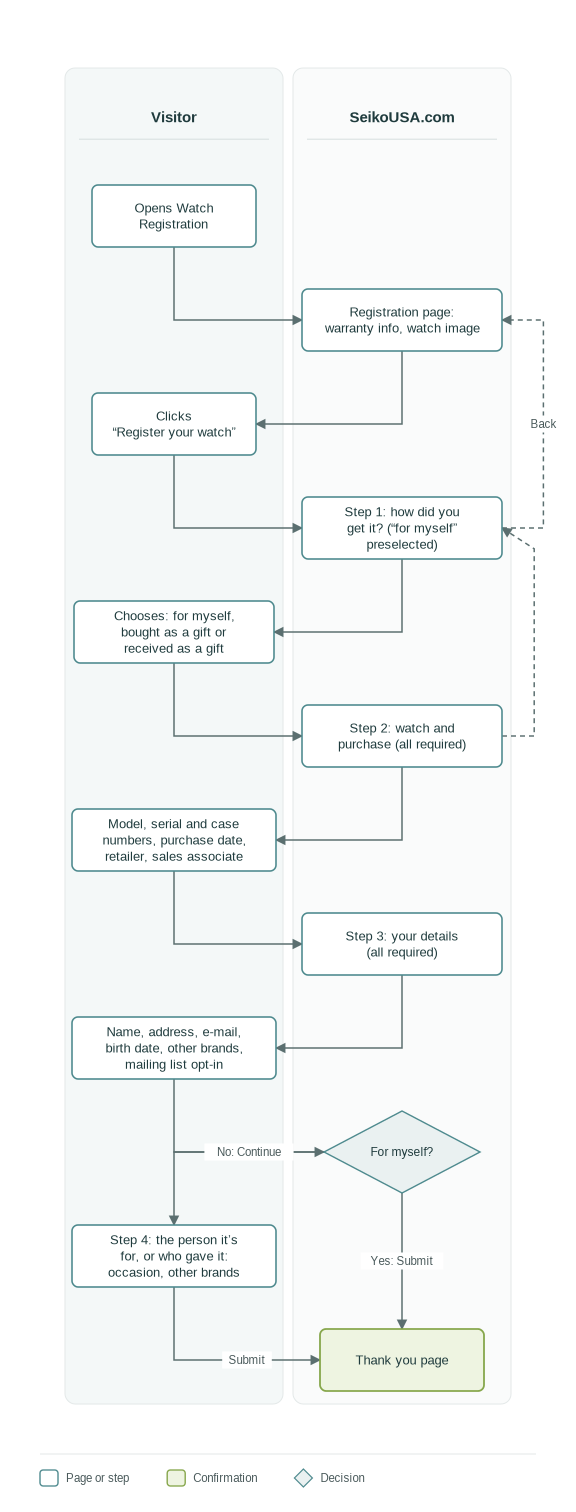
Registration adapts to how the person got the watch, and asks only what that case needs. Every step has Back; Back from Step 2 returns to the Step 1 choice the visitor made.
Use case: register a watch
Who
A watch owner, or someone who gave or received a watch
Starts from
Watch Registration in the header
Ends with
The thank you page
VisitorSeikoUSA.com
Visitor: Opens Watch Registration.SeikoUSA.com: Shows the registration page: text, a watch image, About your warranty and Register your watch.
Visitor: Clicks Register your watch.SeikoUSA.com: Shows Step 1, with “I purchased it for myself” selected.
Visitor: Chooses: purchased it for myself, purchased it as a gift, or received it as a gift.SeikoUSA.com: Shows Step 2, all fields required.
Visitor: Enters model, serial and case numbers, purchase date, retailer and its address, and the sales associate.SeikoUSA.com: Shows Step 3, all fields required.
Visitor: Enters name, address, phone, e-mail (twice), date of birth and other watch brands owned, and can join the mailing list.SeikoUSA.com: For “myself”, Submit shows the thank you page. For a gift, Continue shows Step 4.
Visitor: For a gift: enters the other person’s details, when the watch will be given, the occasion and the brands they own, and can add them to the mailing list.SeikoUSA.com: Submit shows the thank you page.
Each step, and what the site does in return.
Business partners
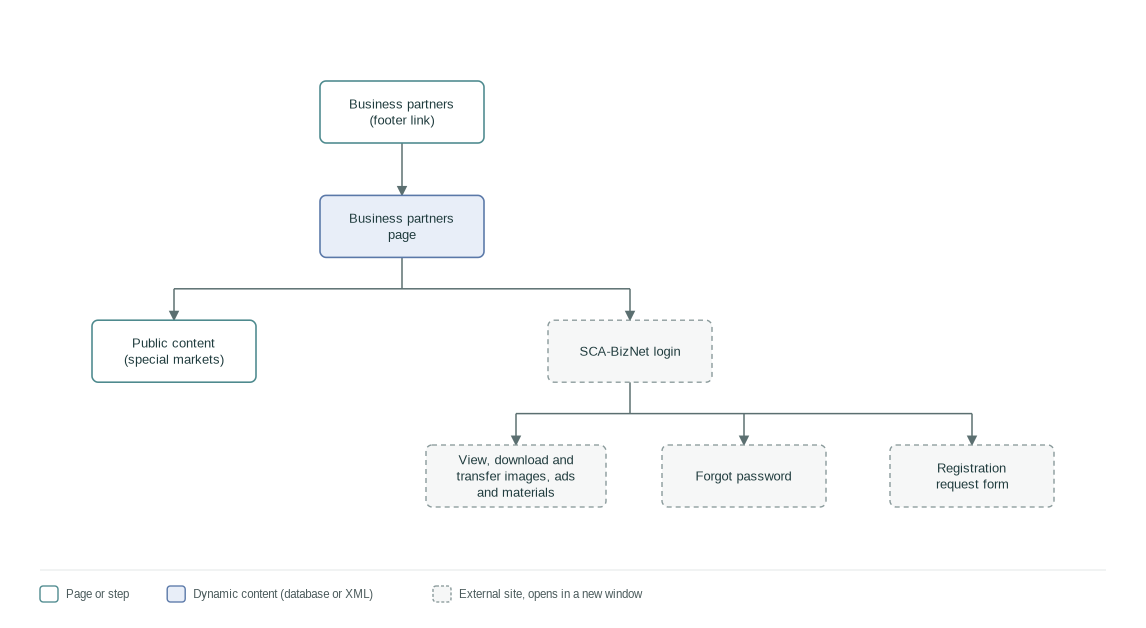
Retailers reach the business partners page from the footer. It shows public content for special markets and leads to SCA-BizNet, the image resource for partners.
The path for retailers and partners.
Use case: get brand materials
Who
A retailer or business partner
Starts from
Business partners in the footer
Ends with
Seiko, Pulsar or Seiko Clocks materials downloaded
VisitorSeiko and BizNet
Visitor: Opens Business partners.Seiko and BizNet: Shows public special-markets content and the link to SCA-BizNet.
Visitor: Logs in to SCA-BizNet with a user ID and password, and can stay remembered on that computer.Seiko and BizNet: BizNet lets partners view, download and transfer Seiko, Pulsar and Seiko Clocks images, advertising and information materials.
Other paths: a forgotten ID or password goes to BizNet’s help page. A partner who isn’t registered fills out a registration request form. Partners already registered on BizNet use the same ID and password.
Managing the catalog
The watches in the gallery come from a product summary view in the CMS.
Use case: publish a watch
Who
A CMS user at Seiko
Starts from
The product summary view
Ends with
The watch published, hidden or deleted
CMS userCMS
CMS user: Filters the list by product ID, collection, technology, language, status, template or order.CMS: Lists each watch with its thumbnail and those fields, with English and Spanish columns.
CMS user: Selects watches and picks a product gallery template and a product detail template.
CMS user: Clicks Publish, Hide or Delete.CMS: Applies it to the selected watches.
Page rules
Pages use one Flash template, 936 × 600 pixels, with the header, footer and external links around it.
On the main category page the sub navigation opens on click; everywhere else it opens on rollover.
The page title shows where you are: main category, then subcategory (for example Collection, then Kinetic).
On the product page, Product Category is open by default. A tab with no content is not shown, and content longer than its space scrolls with a slider on the right.
Back and Next on the product page keep the count, such as 1 of 5.
Videos stream as they open, play once without looping, and have play and pause.
In What’s New, new models carry a New flag and the New category is highlighted in the left navigation.
Conflict-free information is posted under the Diamonds category.